If you’ve ever wondered how those hyper-realistic AI avatar videos are made, you’re about to discover a game-changing tool that will elevate your content creation to a whole new level. Imagine using a free AI avatar generator to create professional, lifelike videos featuring talking AI avatars that look and sound just like real people — all in just a few minutes, powered entirely by artificial intelligence.
Whether you’re a content creator, digital marketer, or simply curious about emerging AI technology, this comprehensive guide will walk you through how to create AI video avatars for free using JoggAI, an innovative and user-friendly platform. It’s not just powerful—it’s also incredibly affordable and perfect for anyone exploring AI-generated content.
In this post, we’ll dive deep into how JoggAI works, why it stands out compared to other platforms like HeyGen, and how you can use this tool to produce captivating, ultra-realistic avatars — even starting from your own photos. Ready to unlock the secrets of next-gen avatar creation? Let’s get started.
🚀 What is JoggAI and Why It’s Revolutionizing AI Avatar Creation
JoggAI is a cutting-edge AI avatar generator that allows you to build hyper-realistic digital avatars that can talk, move naturally, and express emotions — all powered by advanced AI technology. Unlike many other tools on the market, JoggAI offers a perfect blend of affordability, ease of use, and top-tier quality.
Many creators know HeyGen as a popular avatar tool, but JoggAI is quickly becoming its biggest rival thanks to its superior realism, more natural movements, and a much friendlier price tag. Whether you want to automate your YouTube content, create ad videos by simply pasting a product URL, or make a talking version of yourself, JoggAI makes it ridiculously easy.
One of the standout features is the ability to generate avatars that don’t just stand still — they blink, gesture, and speak with human-like voices that sync perfectly with their lip movements. This level of realism makes your content feel authentic and engaging, which is crucial for capturing your audience’s attention in today’s competitive digital landscape.
If you want to explore JoggAI yourself, you can get started here for free and test out the platform’s capabilities firsthand.
🎯 Getting Started with JoggAI: Setting Up Your Account
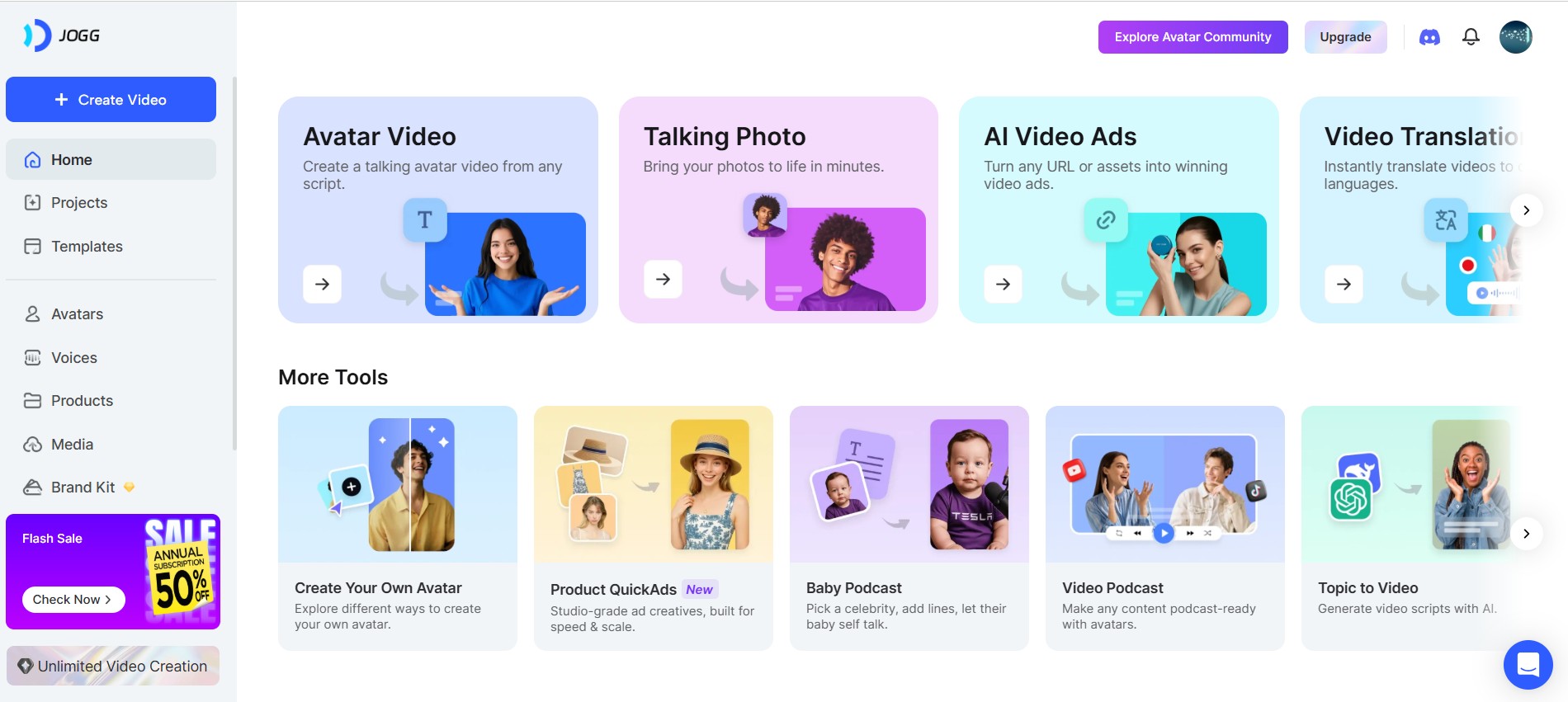
Jumping into JoggAI is straightforward. To begin, simply visit the homepage (you can use my affiliate link here) and click on the Get Started for Free button. Creating your free account takes just moments — sign up, log in, and you’ll be greeted by a clean, intuitive dashboard that centralizes all the powerful features JoggAI offers.
The dashboard is your creative playground. From here, you can access tools like:
- Avatar Video — Create videos featuring AI avatars that speak and move.
- Talking Photo — Animate photos to become talking avatars.
- AI Video Ads — Automatically generate ad videos by simply pasting a product URL.
- Templates — Use pre-made video templates tailored for different niches and styles.
- AI Voices — Choose from a library of realistic voices in multiple languages and accents.
- AI Podcasts — Generate podcasts with AI voices and avatars.
- Multi-angle videos — Add dynamic perspectives to your content.
For now, we’ll focus on the core features that allow you to create your own hyper-realistic avatars and bring them to life with natural motion and voice.
🖼️ Creating Your AI Avatar: Step-by-Step Guide
The heart of JoggAI lies in its avatar creation process, which gives you two powerful methods to generate avatars: Text to Avatar and Photo to Avatar. Both are incredibly user-friendly, but let’s break down how to use each one so you can decide which fits your needs best.
Text to Avatar: Fast and Powerful for Beginners
Starting with Text to Avatar is a breeze. From your dashboard, click on Avatar Video, which will open the Avatar Creation panel. Here, you’ll see a collection of public, hyper-realistic avatars ready to use. But if you want something truly unique, click on My Avatar to start building from scratch.
Once inside, pick the Text to Avatar method. This option lets you create a completely new avatar based on descriptive prompts, so you can customize every detail:
- Choose a preset style: Social (casual and friendly) or Professional (corporate and polished). For approachable content, social style works great.
- Define age, gender, and ethnicity: These parameters help the AI generate an avatar that matches your vision.
- Enter the avatar prompt: This is a detailed description of your avatar’s appearance. I share a full prompt example in the description or pinned comment to guide you.
- Set the background prompt: Describe the backdrop behind your avatar to fit your brand or style.
- Select module type: Choose Modern for the best quality and realism.
- Pick the aspect ratio: Portrait for vertical videos like TikTok or landscape for YouTube and widescreen formats.
Next, hit Generate. JoggAI will create multiple avatar images based on your prompt. Scroll through the previews and choose your favorite. If none are quite right, you can regenerate for fresh options.
Animating Your Avatar with Motion and Voice
Once you select your avatar image, it’s time to bring it to life. The interface changes to the motion editor where you can:
- Motion Prompt: Describe how your avatar should move — for example, “talking naturally with hand gestures.” You can also pick from preset motion styles.
- Motion Version: Switch from Motion 1.0 to Motion 2.0 Pro for ultra-realistic, smooth movements and facial expressions.
- Voice Selection: Open the voice library to pick from dozens of AI voices in various languages, accents, and tones that match your avatar’s personality.
Hit Generate again to render the video. After a brief processing time, you’ll get a preview of your avatar talking, gesturing, and syncing lips like a real person. The quality is truly impressive and perfect for engaging viewers.
Photo to Avatar: Create Avatars from Your Own Images
Want to turn a photo of yourself or a character into a talking avatar? JoggAI makes that just as easy. Here’s how:
- Click Create Avatar, then select Photo to Avatar.
- Upload your image.
- You’ll be taken to the motion editor, where you can add motion styles, pick a voice, and customize just like with Text to Avatar.
- Generate your talking avatar video.
This feature is perfect for creators who want a personalized avatar that looks exactly like them or for brands wanting to animate mascots or characters.
🎥 Producing Your Final AI Avatar Video
With your avatar and motion ready, it’s time to create the full video. JoggAI offers two ways to add content:
- Type your script directly: Enter the text you want your avatar to speak.
- Upload prerecorded audio: If you prefer, upload your own voice recording or narration.
You can also toggle subtitles on with a single click to make your videos more accessible and engaging for viewers.
Next, choose your video’s aspect ratio and export format. Whether you want a short TikTok-style video or a widescreen YouTube presentation, JoggAI has you covered.
Once everything is set, hit Render Video. JoggAI will process your avatar, motion, voice, and script into a polished video ready for download and sharing.
💰 Pricing and Plans: What You Get with JoggAI
JoggAI offers a free tier where you can create up to three videos, which is great for testing the platform and getting familiar with its features. However, free videos include a watermark. For creators who want clean, professional videos without watermarks, upgrading to a premium plan is recommended.
Here’s a quick overview of the premium options:
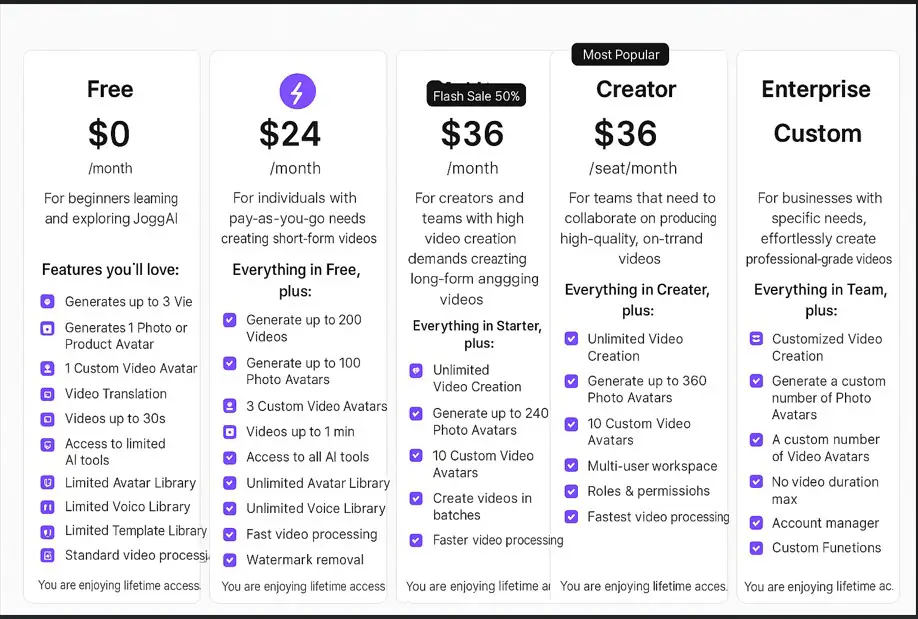
Now the annual 50% offer is running.
📂 Exploring JoggAI Templates and Extra Features
Beyond avatars, JoggAI provides a rich library of video templates designed for various niches and styles. These templates simplify the video creation process by giving you a ready-made structure where you just need to insert your script and avatar.
To use a template:
- Click the Templates icon on the left menu.
- Browse through the options and select one that fits your content.
- Click Use this template, paste your script, and add your avatar.
- Edit any elements directly within the video editor — no external tools needed.
JoggAI also supports AI-generated podcasts, allowing you to create audio content with AI voices and avatars, bringing a new dimension to your storytelling or brand messaging.
💡 Tips for Maximizing Your AI Avatar Videos
- Use Detailed Prompts: The more specific your avatar prompt, the better the AI can generate a unique, realistic avatar that matches your vision.
- Experiment with Motion Prompts: Try different motion styles and descriptions to find the most natural movements for your content.
- Pick Voices Carefully: The voice you choose should align with your brand’s tone and the avatar’s personality for maximum impact.
- Leverage Templates: Templates can speed up your workflow and ensure your videos look professional without extra effort.
- Upgrade for Unlimited Creation: If you plan to create lots of content, the Creator Plan offers great value and flexibility.
❓ Frequently Asked Questions (FAQ) 🤖
What makes JoggAI better than HeyGen?
JoggAI offers more affordable pricing, higher-quality avatars with natural motion and facial expressions, and a broader range of features like AI podcasts and multi-angle videos. Its voice syncing and hand gestures are notably more realistic, making your videos feel truly human.
Can I create an avatar from my own photo?
Yes! JoggAI’s Photo to Avatar feature lets you upload any image and transform it into a talking, moving avatar with customizable voice and motion.
Is there a free version of JoggAI?
Yes, you can create up to three videos for free with watermarks. It’s a great way to try out the platform before deciding to upgrade.
How long does it take to generate an avatar video?
Typically, generating the avatar images takes a few moments, and rendering the final video takes a minute or two depending on the length and complexity.
Can I use JoggAI for commercial projects?
Absolutely. JoggAI’s premium plans are designed for creators and marketers, so you can use the videos for YouTube, ads, social media, and more.
Does JoggAI support multiple languages and accents?
Yes, the voice library includes a variety of languages, tones, and accents to match your target audience and content style.
Can I add subtitles to my videos?
Yes, subtitles can be toggled on with a single click to improve accessibility and viewer engagement.
🎉 Final Thoughts: Unlock Your Creative Potential with JoggAI
Creating realistic AI avatars no longer requires expensive equipment, actors, or complicated software. With JoggAI, you have a powerful, affordable, and user-friendly platform that puts the future of content creation in your hands. Whether you want to automate your YouTube videos, create personalized AI presenters, or produce dynamic marketing content, JoggAI offers everything you need to make it happen.
Remember, you can start for free and test out all the features before deciding to upgrade. The combination of hyper-realistic avatars, natural motion, high-quality AI voices, and useful templates makes JoggAI the ultimate AI avatar video generator available today.
Ready to transform your content and wow your audience? Get started with JoggAI now and bring your ideas to life with AI.
If you create your own AI avatar video, I’d love to hear about your experience and see your results. Feel free to share your stories and questions in the comments below. Happy creating!

1 thought on “How to Create Realistic AI Avatars for FREE with JoggAI”